

FAQ

Supported Platforms

Currently following Instagram, TikTok, BlueSky, Twitch, Reddit, YouTube, and X.

Pricing

Your first followed account is free, no credit card required. The Basic plan is $10/month for unlimited accounts, and the Pro plan is $15/month: everything in Basic plus TikTok monitoring. The Business plan is $39/month: everything in Pro plus keyword filters, @mentions, and daily digests for teams monitoring many accounts (these controls are available on Slack and Discord). All paid plans come with a 30-day free trial. The free plan checks accounts less frequently than the paid plans. Payments aren't prorated or refunded, but if a charge was made in error, email support within 14 days and we'll review it.

Why isn't the bot posting?

The most common cause: the bot isn't a member of the channel. Chat platforms only let apps post in channels they've been added to. Following an account isn't enough on its own. Invite the bot by mentioning its name in the channel (in Slack: type @followbot and add it). Once it's a member, new posts are delivered automatically.

Also worth checking: the followed account must be public (private accounts can't be monitored), and accounts that haven't posted anything new won't generate notifications.

How often are accounts checked?

Accounts are checked automatically on a recurring schedule, no setup needed. Paid plans are checked more frequently than the free plan, and delivery frequency also depends on how often the followed account actually posts.

Unsubscribe

You can cancel any time by removing Follow Bot from your workspace, or via the billing link in your Stripe email receipt.

Other Questions?

If you have any questions not covered by the F.A.Q. please reach out to support for assistance: support@followbot.io

Slack

Adding accounts

Adding accounts can be done through the follow slash command.

To access the Add Account dialog use the command: /follow
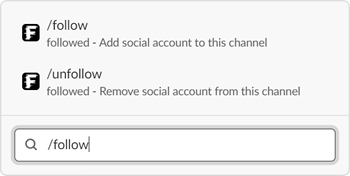
The /follow slash command typed in a Slack message box

This command will trigger the dialog box where you will identify the platform and account to follow.

You can follow up to 10 accounts at once. Separate the names with commas.
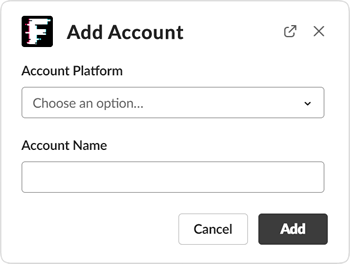
Follow Bot add-account dialog with platform and account name fields

After submitting the dialog a notice will be posted to your channel if Follow Bot is not a member.
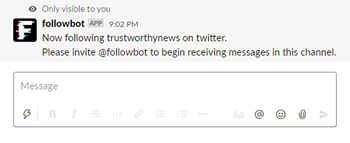
Channel notice telling the user to invite Follow Bot so it can post

Follow Bot will need to be invited to the channel in order to have permissions to post.

You can invite Follow Bot by simply mentioning its username in the channel: @followbot

Discord

Adding accounts

Adding accounts can be done through the slash command: /follow

Select the platform and enter the account username you would like to follow.

You can follow up to 10 accounts at once. Separate the names with commas.

After submitting you will receive confirmation that your account was successfully added.

Removing accounts

Removing accounts can be done through the slash command: /unfollow

You will be shown a list of currently followed accounts to select from.

After submitting you will receive confirmation that your account was successfully removed.

List accounts

You can see what accounts are currently followed with the slash command: /list

Telegram

Getting Started

Follow Bot works in group chats and in a direct message with the bot. (Broadcast channels aren't supported. Commands need a chat where members can type.) The easiest start: open t.me/its_follow_bot, tap Start, then use the "Add to a group" button.

To add Follow Bot to a Telegram group manually:

1. Open the group you want to add the bot to

2. Tap the group name at the top to open group info

3. Tap "Add Members"

4. Search for the bot by its username and select it

5. Once added, use commands directly in the group chat

Adding accounts

Adding accounts can be done through the command: /follow <platform> <account>

For example: /follow instagram nike

Removing accounts

Removing accounts can be done through the command: /unfollow <platform> <account>

List accounts

You can see what accounts are currently followed with the command: /list

Microsoft Teams

Getting Started

To install Follow Bot in Microsoft Teams:

1. In Teams, click "Apps" in the left sidebar

2. Search for "Follow Bot"

3. Click "Add" and choose the team or channel to add it to

All commands require an @mention: @Follow Bot help

Adding accounts

Adding accounts can be done through the command: @Follow Bot follow <platform> <account>

For example: @Follow Bot follow instagram nike

Removing accounts

Removing accounts can be done through the command: @Follow Bot unfollow <platform> <account>

List accounts

You can see what accounts are currently followed with the command: @Follow Bot list